

If you just unboxed a Huawei phone or tablet, the first thing you may want is the apps you already use every day.
That is where the huawei google play store question comes in: instead of chasing random downloads, the cleaner path is to work through AppGallery, Google sign-in, and GBox in the right order.
Huawei has built a practical setup for users who want a smoother way to access Google-related apps.
In most cases, you do not need to force anything.
You simply start with AppGallery, let the required services install, and only move to GBox when an app is not available.
For a quick reference, this huawei google play store guide follows the same logic.
Start with AppGallery First
AppGallery is the best place to begin because it already covers many of the essential apps people look for.
Open AppGallery, search for YouTube, and tap Get. If you try another Google app, the flow is similar.
Once the app starts installing, Huawei may show a prompt explaining that extra components are needed to make it work properly.
Open AppGallery.
Search for YouTube or another Google app.
Tap Get and install the app.
When prompted, tap Install again.
Let microG Companion and microG Service install automatically.
This step matters because microG handles the Google sign-in and background service layer that many apps expect.
If you skip it, login and notifications may feel incomplete.
That is why the huawei google play store experience on Huawei works best when you let the setup finish on its own.
Sign In to Your Google Account
After YouTube or another Google app is installed, open it and tap Sign in. You will usually be redirected to the microG Services page first.
Tap SIGN IN one more time, then continue to the Google login screen and enter your account details.
If the sign-in screen loads normally, you are past the hardest part.
From there, Google-linked apps can run much more smoothly because the device now has the supporting services in place.
Use GBox When AppGallery Does Not Have the App
Some apps still do not show up in AppGallery.
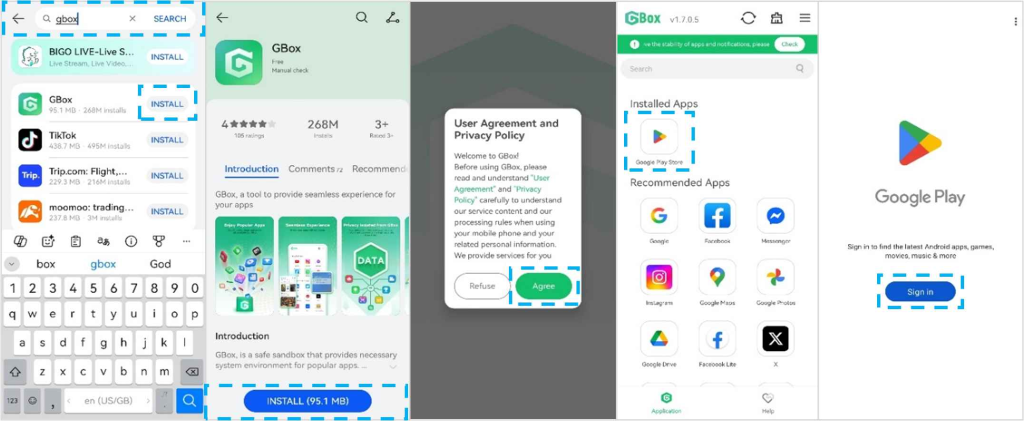
In that case, the simplest route is GBox. Search for GBox in AppGallery, install it, and sign in. Once the setup is complete, you will be taken into a Google Play environment inside GBox, where you can search for the app you need and install it.
Open AppGallery.
Search for GBox and install it.
Open GBox and tap Sign in.
Complete the login flow.
Search for the app you want, such as Netflix, and tap Install.
This is the most common fallback for users who search for the huawei google play store path but cannot find a direct app listing.
Instead of using unsafe mirrors or unverified APKs, you stay inside Huawei’s recommended workflow.
You can also read the same process in this huawei google play store community guide if you want a second look before installing anything.
How App Updates Work
Updating is just as important as installing.
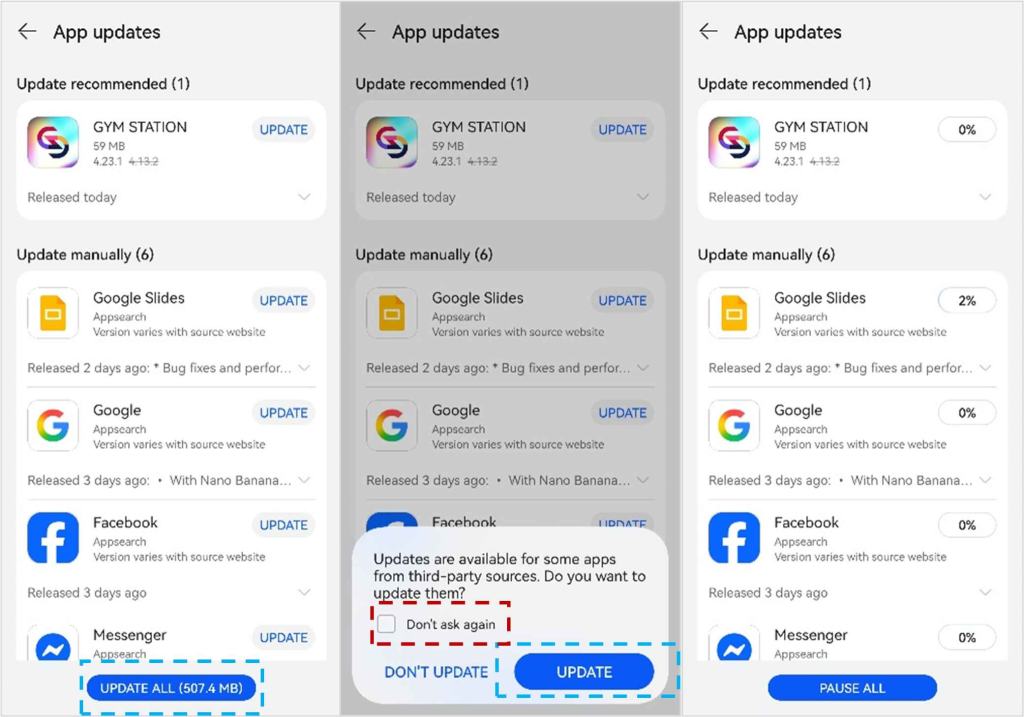
To check updates, go to Me in AppGallery and tap Update.
If a message appears about third-party apps, confirm the update and let it continue.
Apps installed through GBox may update in batches automatically.
Apps installed through AppGallery can usually be updated from the AppGallery update page.
Do not remove microG Companion, microG Service, or GBox if you still need Google apps to work.
Removing those pieces can break the whole setup. If your goal is a stable huawei google play store style experience on Huawei, keeping those support apps installed is the safest move.
What microG and GBox Actually Do
microG helps with Google sign-in and service compatibility.
GBox acts as a bridge for apps that are not directly available in AppGallery.
Together, they make the process more predictable. AppGallery handles discovery, microG handles sign-in support, and GBox fills the gap when a specific app is missing.
That structure is what makes the huawei google play store journey feel manageable instead of confusing.
Simple Habits That Save Time
Search AppGallery first before trying anything else.
Install the support apps when prompted, even if the extra step feels unnecessary.
Use GBox only when AppGallery does not offer the app you need.
Keep microG and GBox on the device if you rely on Google-linked apps.
Update from AppGallery regularly so services stay in sync.
If you follow that order, the huawei google play store workflow stays clean: AppGallery first, support services second, GBox only when needed, and updates from the official tools already on the phone.